Senior mode

Glad to introduce my favourite new feature: Senior mode. It’s to be found in the “Look and feel” submenu, as it means no change in the functionality, only in the visual aspect of the app.

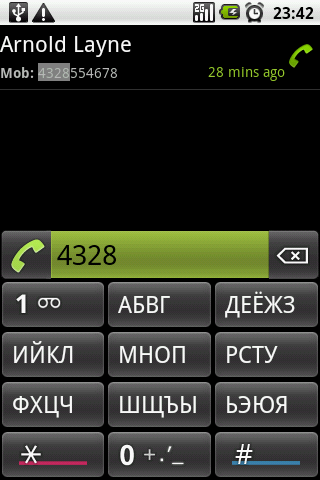
For me it was always a bit problematic to find my way through the letters, when I was “on the go”. The latest version 2.2.0 provides two solutions for this, one is to set a custom colour for the letters of the second language, which is a very standard way, and the second way is the “Senior mode” which may seem a bit peculiar. It means that the letters of the second language are displayed LARGE, so that they are hard to miss. The numbers are gone, since we all know where they stand – as it is their position that is relevant, not their value. The Latin letters are also gone – since a) many use mostly (or only) the second language, and b) because many know the position of the Latin letters on the dialpad (for example, I wasn’t aware I knew that, until now).
I'm fit for the senior mode, obviously.
The ones that use no second language, the Latin letters will be displayed LARGE in senior mode. Very cool. But, still, I wasn’t brave enough to set this option per default, you should find it in the menu and try it out.

Please note that the functionality remains the same, even when only the second language letters are displayed, the search is by two alphabets, and by numbers, of course.

Another new thing in this release is – apart from several fixes – usage of the hardware call button. Quite strange that not until several people on the 4PDA.ru forum requested this feature, did I realize that this button could be used for more than just starting the app… So now, when your search yields only one result, pressing the hard call button will call that contact. Otherwise, the number in the dial field will be dialed.

You know you have a good app when people are seeking to crack it

And the award offered is 50 times the price of the app. One of the biggest compliments I received for the Fast Dialer.

Good luck people 🙂 If I have to change something around the registration procedure, it means they made it. Good to have someone to blame.
http://forum.mobilism.org/viewtopic.php?f=445&t=151228

P.S. It’s not me, nor someone I know 🙂

Fast Dialer v.2 – Some meaningful colours

Options for contacts / results sorting. Time of last call.What’s in version 2?
Everything that was in version 1, plus some new features. Its good to mention that the basis of the app remains the same, so it won’t lose on performance because of the enhancements, which is, unfortunately, not always the case with our favourite programs.

And what’s new?
Contact sorting. It used to be alphabetical only, by name, but now you can choose to sort by preference (i.e. how often you contact a person), or by the time of the last call – which is now the default sorting, since I find it the most meaningful of all.

Time of last call. Always displayed for each contact (where it’s missing – no calls have been logged for that person).

Red is for wildcard search modeWildcard search mode
Long pressing the star (*) button turns on the wildcard search mode. The number field turns red (sort-of red) to make this obvious. The typed * is a wildcard for any combination of characters, digits etc. within the name / company.

What good is this for? Let’s say you have several contacts whose name is Ian, and you want to dial the one that works for Intel. You start to type 426 (for Ian) and you may end up seeing something like:

Ian Christopherson
Ian John Boose
Ian Van Der Saar (Motorola)
Ian Gillan (DP)
...
Ian J. Christopherson (Intel)

So, to speed up the search, long press the *, and afterwards type 46 (for In…) and voilà – you found the Ian you wanted to dial.

Search all numbers mode.Blue is for search all numbers mode
Long pressing the number sign (#) makes the number field turn blue, which means the search all numbers mode is on. Since normally the Fast Dialer searches only through the default numbers, this is useful if you want to dig out another number.

I must admit that I intended version 2 to include an option to always “search through all fields”, as well as other things, but I still haven’t found the time to start working on that. So, this is only a step in that direction. Nevertheless, I think this is a useful improvement which will make the user experience even better, as well as cover even more search scenarios.

By the way, there is an option to display the starred contacts in a different colour, in the default case – yellow.

Someone may note that this was too much explanation for obvious things, which may be true, but since there is no explanation available in the app itself, I just want to make sure people will understand correctly what the app does and what it doesn’t do.

Claim your phone back

The smart phones of today made us slightly forget about the main purpose of the phone – making calls. We have accommodated to other “extra features” and traded a bit of the essential phone functionality for things which we actually may not need so much.

I am biased, but with the Fast Dialer app, I recovered the feeling of the phone in my pocket. I can find and dial (or text) the person I want in no time.  That’s why it’s the only thing I need on the home screen.

Actually, I don’t find that Fast Dialer does something so great, but it simply works as every dialer should, as we all expect it to work. As someone complimented the app recently: it searches normally, not as the other android dialers.

Less is more

Some people have complained that Fast Dialer has very few options. I think that is an advantage. Consider this pocket knife. Among the other neat tools it has a watch, an alarm clock and a timer. Do you know how many buttons it has in order to set all these tools? Well, you can count all buttons you see on the image.

If it’s not obvious, there’s only one button, under the usual logo. So with one button you can set the correct time, set and turn on/off the alarm, configure the timer…

That really leaves an impression. Fast Dialer does have more than one button, but it tries to be simple and efficient.

A bug in the Android dialer makes an international call by mistake

Android robot logo.
Image via Wikipedia

While doing some tests with the stock dialer of my LG GT540 I discovered that it could easily make an international call by mistake. How? Lets say I have a friend in Belgium, his name is Peter, and his number is +32 123 4567 and that’s how I have it stored on my phone. Now, if I have another friend, let his name be Andrew, who lives in my hometown, I have his number saved as: 1234567. (Yes, ridiculous numbers, but just to be easier to follow.)

Now, the bug: when I want to call Andrew, I find his name in the contacts list and press the button to call him, but the dialer starts an international call to Belgium, and says I’m dialing Peter, showing also the number: +32 123 4567!

How can this be? It’s a stupid bug. Pity LG left it in. It seems very unlikely that someone has contacts with numbers, similar as in this example, but the bug exists.

Normally, when you press the call button, you are sure you dialed the number that you just saw, and very likely, you immediately put your phone next to your ear. You’d be surprised when you hear who’s answering 🙂

My LG GT540 still runs on Android 1.6, I’m wondering if the same thing exists in the 2.1?

Is this happening also on your Android phones?

UPDATE: The problem is reported to exist on other devices as well.

Fast Dialer

Latest version
Updated extended description

A multi-language Dialer for Android 1.5 + devices.

Find and dial the contact you want in just a few clicks, regardless of which Alphabet the name is written with – Latin, Greek, Cyrillic, Hebrew, Arabic…

The app searches through the contacts by name or number, using two different alphabets at the same time, for example English and Russian.

All Latin-based European languages are supported by default.

Available Alphabets:

  • Greek,
  • Cyrillic – Russian, Serbian, Bulgarian, Ukrainian…
  • Hebrew
  • Arabic

Download a trial version